Add Zoom Animations to Screen Recordings
Guide viewer attention with smooth zoom and 3D tilt effects. Highlight what matters most.
How It Works
Import your screen recording
Upload your product demo or tutorial video.
Add keyframe animations
Click on the timeline to add zoom keyframes at specific moments.
Adjust zoom level & position
Set the scale and pan position for each keyframe to focus on key UI areas.
Fine-tune with easing
Choose from 20+ easing options for smooth, professional transitions.
Beautiful Templates
Hand-crafted templates for X (former Twitter), Dribbble mockup shots, product demos, and newsletters.
Unique Features
The easiest way to create beautiful product videos from images & screen-recordings.
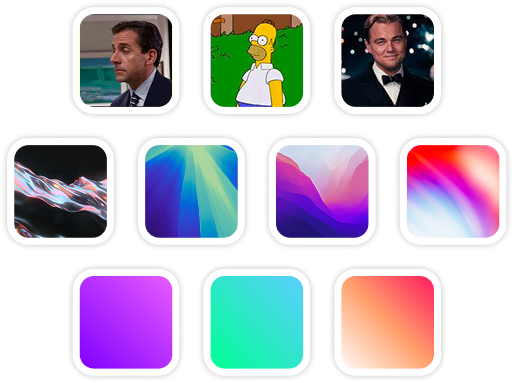
Custom Backgrounds
Use solid colors, gradients, images, even GIFs for your video background.
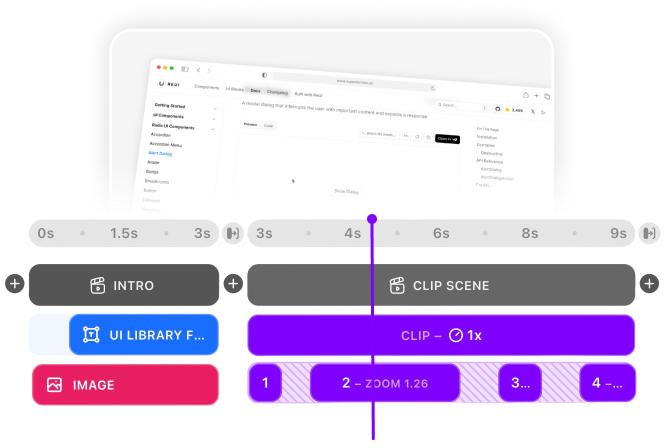
Multi-Scene Editing
Combine multiple clips and scenes with smooth transitions into one polished video.
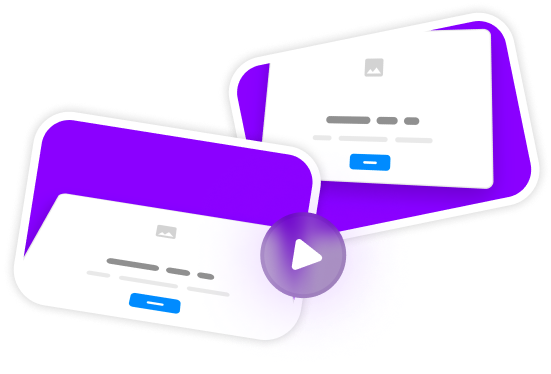
Pre-made Templates
Ready-to-use templates to create professional-looking videos in seconds.
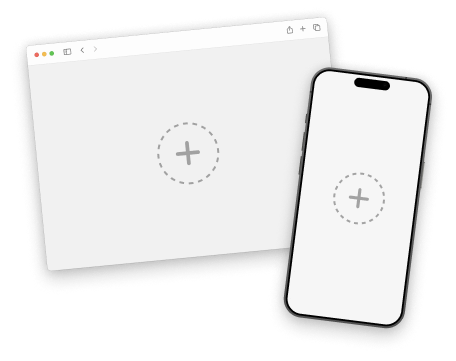
Device Mockups
Wrap your images with device mockups like the Safari Browser & iPhone.
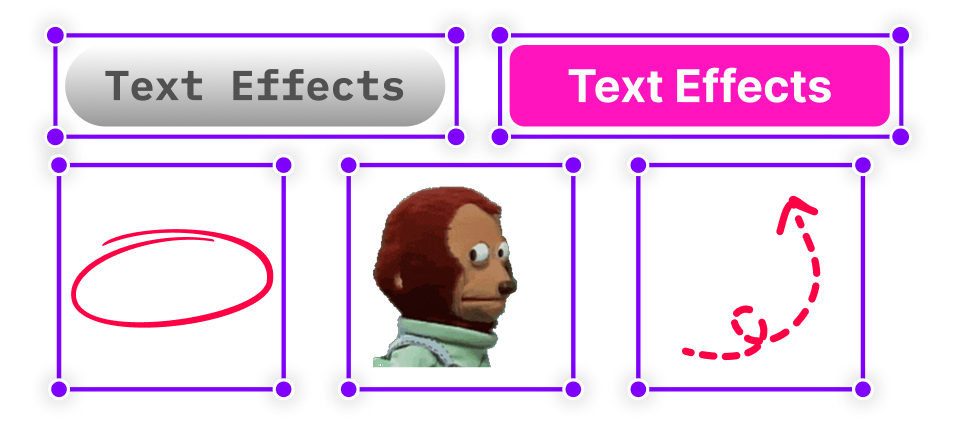
Annotation Layers
Add text, shapes, stickers, and more to highlight key parts of your video.
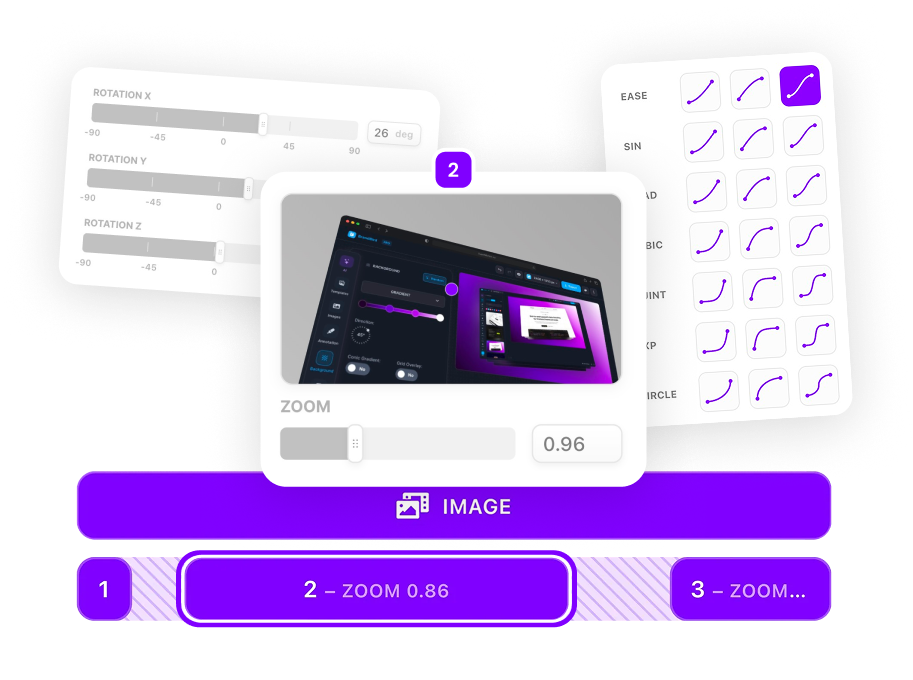
Zoom & Keyframe Animations
Add smooth zoom and pan effects to highlight key features in your screen recordings.
Frequently Asked Questions
How do I create smooth zoom transitions?
SuperMotion uses a keyframe-based system. Add keyframes at different points, set their zoom level and position, and the app automatically interpolates smooth transitions between them.
What easing options are available?
Choose from 20+ easing functions including linear, ease-in-out, cubic, bounce, and elastic. Each creates a different feel for your animations.
Can I zoom to specific UI elements?
Yes! Simply position the zoom target on any area of your screen recording—buttons, forms, menus, or any UI element you want to highlight.
How do I add Ken Burns effect to my videos?
Create a slow, subtle zoom animation using keyframes. Set a small zoom increase (1.0 to 1.1) over several seconds with ease-in-out timing. This creates the classic documentary-style Ken Burns pan and zoom effect.
Can I combine zoom with 3D tilt effects?
Absolutely! SuperMotion supports perspective transforms. Add rotateX and rotateY to your keyframes for dramatic 3D tilts while zooming—perfect for hero sections and product showcases.
What zoom level works best for screen recordings?
For UI highlights, zoom to 150-200% to make buttons and text clearly visible. For dramatic reveals, try 300%+. Always ensure zoomed content stays sharp—SuperMotion maintains quality at any zoom level.
How do I create a cinematic zoom effect?
Use ease-out-cubic easing for zooms that start fast and slow down smoothly. Combine with subtle rotation (1-2 degrees) for extra polish. Add motion blur for hyper-cinematic style.
.png)